NVIDIA license service in region eu-de will be migrated to new servers on June 13th, 2022
Migration Information
Section titled “Migration Information”New servers of NVIDA license service in region eu-de have been set up to support latest features and products. These servers have new IP addresses and will be activated by DNS change on June 13th, 2022.
If the DNS names below are used, the clients will use the new servers automatically.
The clients must be reconfigured manually, if IP addresses or different DNS names are used.
!! Please check the connection to new IPs and verify your security group and firewall rules as well (see https://imagefactory.otc.t-systems.com/home/public-services-in-otc-new-ip-addresses).
- affected region:
- eu-de
- affected DNS names:
- gpulicence01.eu-de.otc-service.com (preferred)
- gpulicence02.eu-de.otc-service.com (preferred)
- gpulicence1.eu-de.otc-service.com
- gpulicence2.eu-de.otc-service.com
- gpulicence1.otc-service.com
- gpulicence2.otc-service.com
- old IP addresses:
- 100.125.4.50
- 100.125.4.51
- new IP addresses:
- 198.19.34.77
- 198.19.44.221
- used port:
- 7070
How to check connection to new NVIDIA license servers
Section titled “How to check connection to new NVIDIA license servers”start PowerShell and run commands:
Test-NetConnection 198.19.49.175 -port 7070Test-NetConnection 198.19.38.91 -port 7070test result should be:
TcpTestSucceeded : Trueexample:
PS C:\Users\Administrator\Desktop> Test-NetConnection 198.19.49.175 -port 7070
ComputerName     : 198.19.49.175RemoteAddress    : 198.19.49.175RemotePort       : 7070InterfaceAlias   : EthernetSourceAddress    : 192.168.1.117TcpTestSucceeded : True
PS C:\Users\Administrator\Desktop> Test-NetConnection 198.19.38.91 -port 7070
ComputerName     : 198.19.38.91RemoteAddress    : 198.19.38.91RemotePort       : 7070InterfaceAlias   : EthernetSourceAddress    : 192.168.1.117TcpTestSucceeded : True
How to check and reconfigure NVIDIA license server client
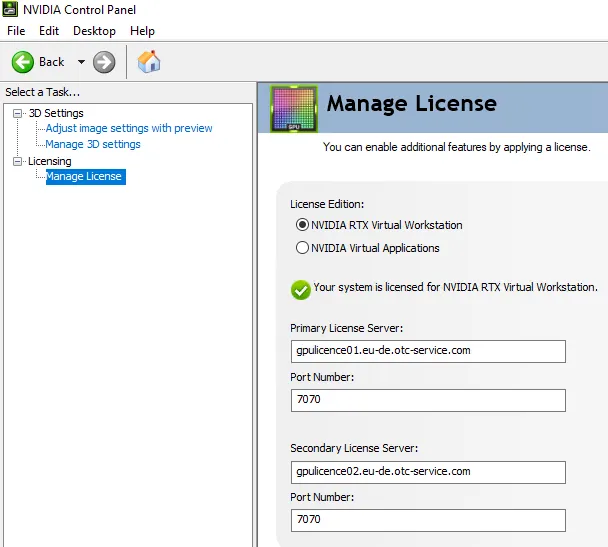
Section titled “How to check and reconfigure NVIDIA license server client”Open the NVIDIA control panel by clicking on the NVIDIA icon in the tray or in control panel.
Select the Manage License Tab and configure the values as shown in screenshot: